Picture
The Sketchbook Express app for the iPad is FREE and it does so much!
You can work in layers
You can fill with color
You can paint/draw
You can import picts
You can transform 
You can add text
You can add shapes
You can merge layers
You can draw/color with the symmetry tool!

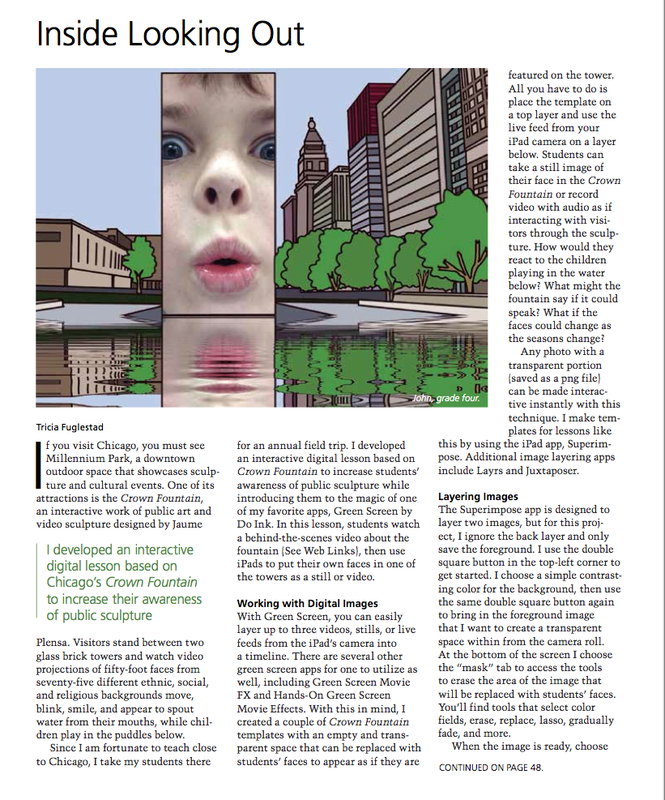
There are so many possibilities for my young artists with the symmetry function (you only have to draw one side of a picture and the other side copies with a mirror of your design). This project below is on my wish list of ideas for this school year. I plan on having my fourth graders make a digital version of the face/vase figure-ground illusion that they created in 3rd grade. We will make it based on a photo of their own profile this time and use these vessels from the google art project to inspire our negative space.
Picture
iPad version made in Sketchbook X
Picture
Mixed media version
See more iPad lesson ideas on my CREATING ON IPADS page.
Ask me about doing an iPad workshop: tfuglestad@sd25.org
 
 
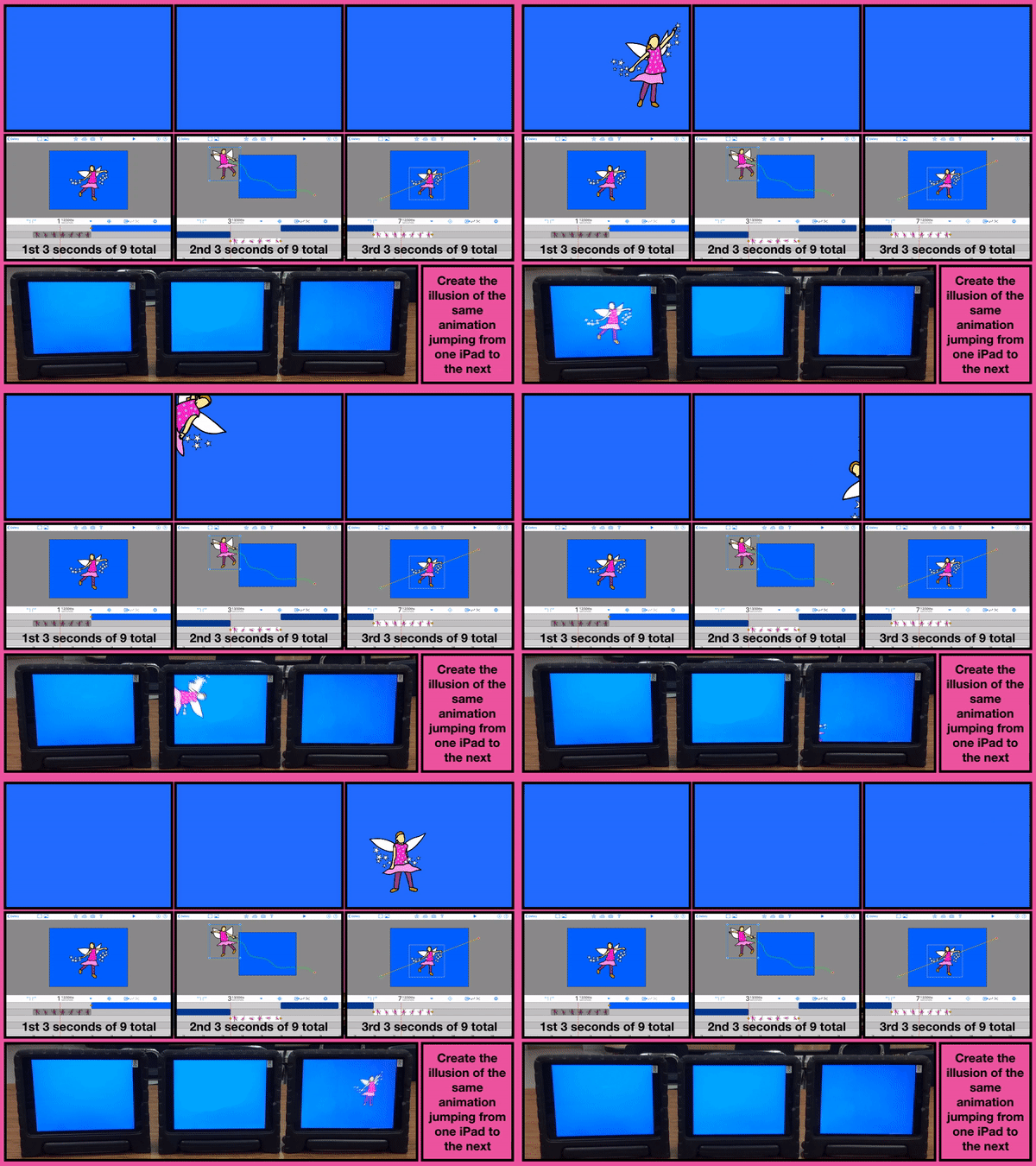
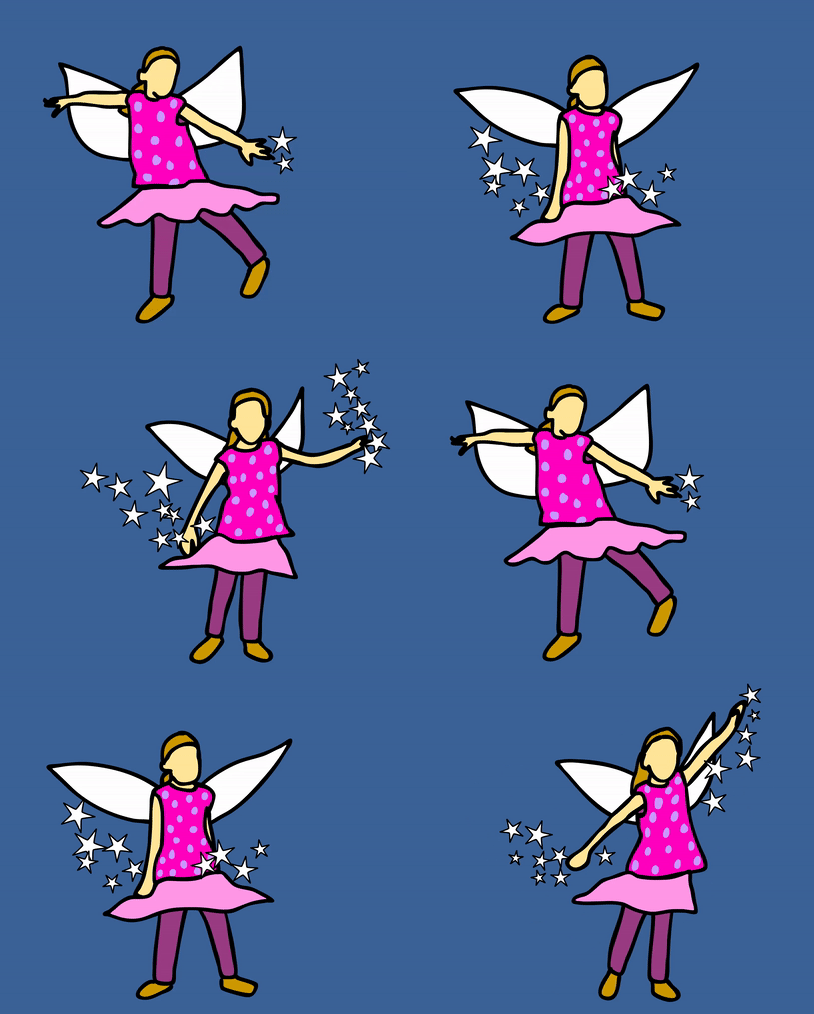
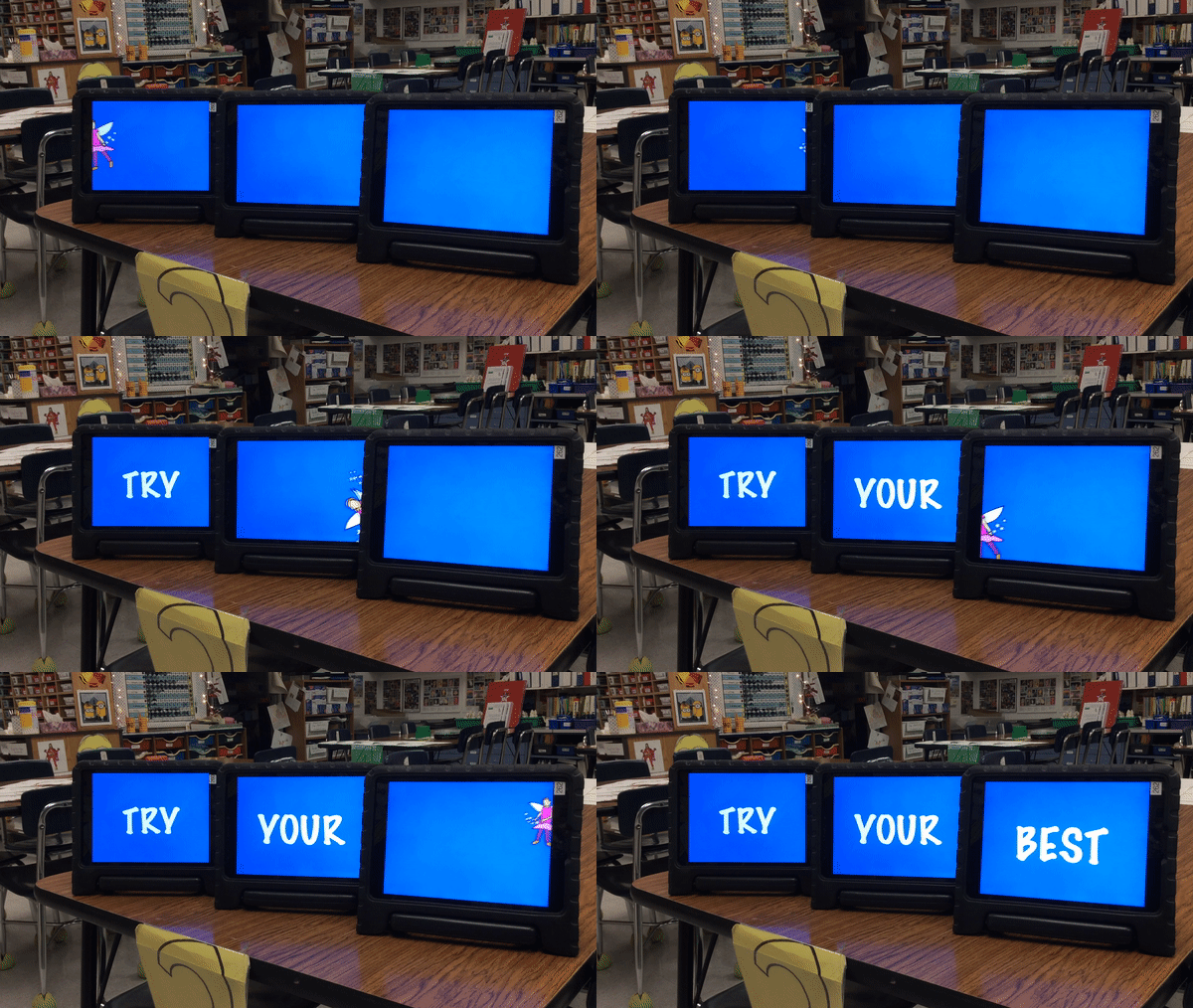
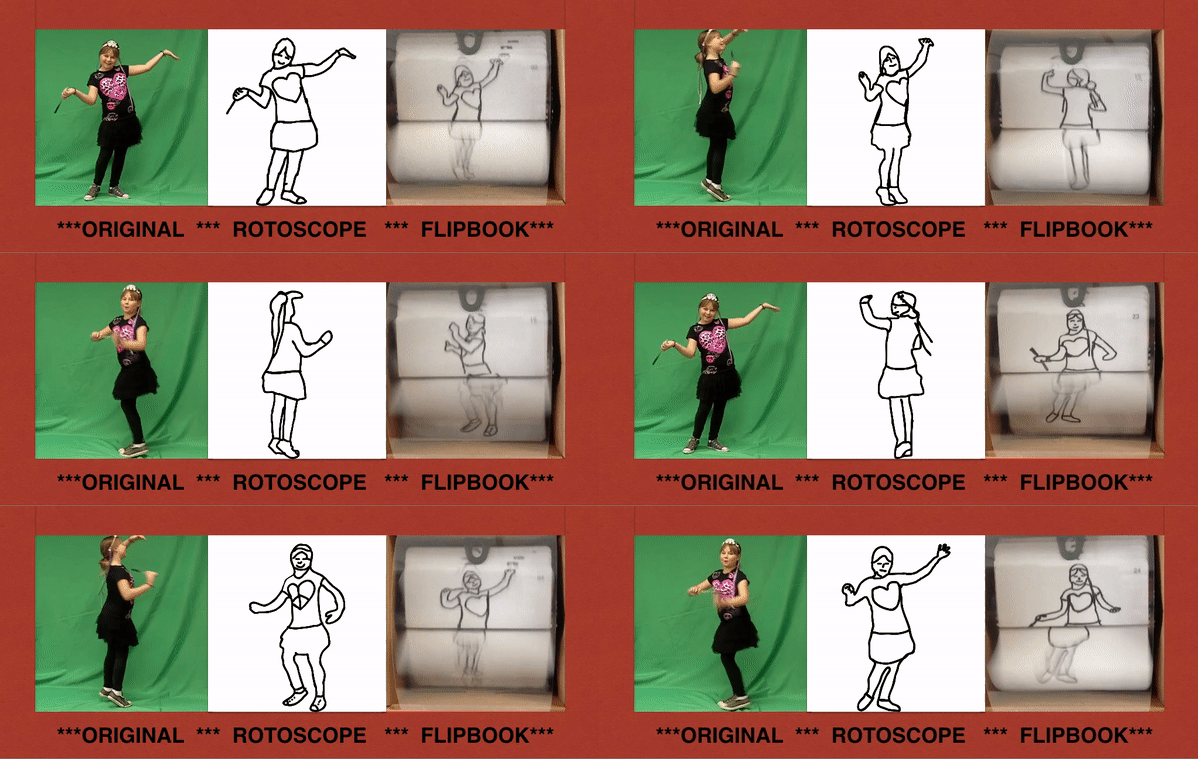
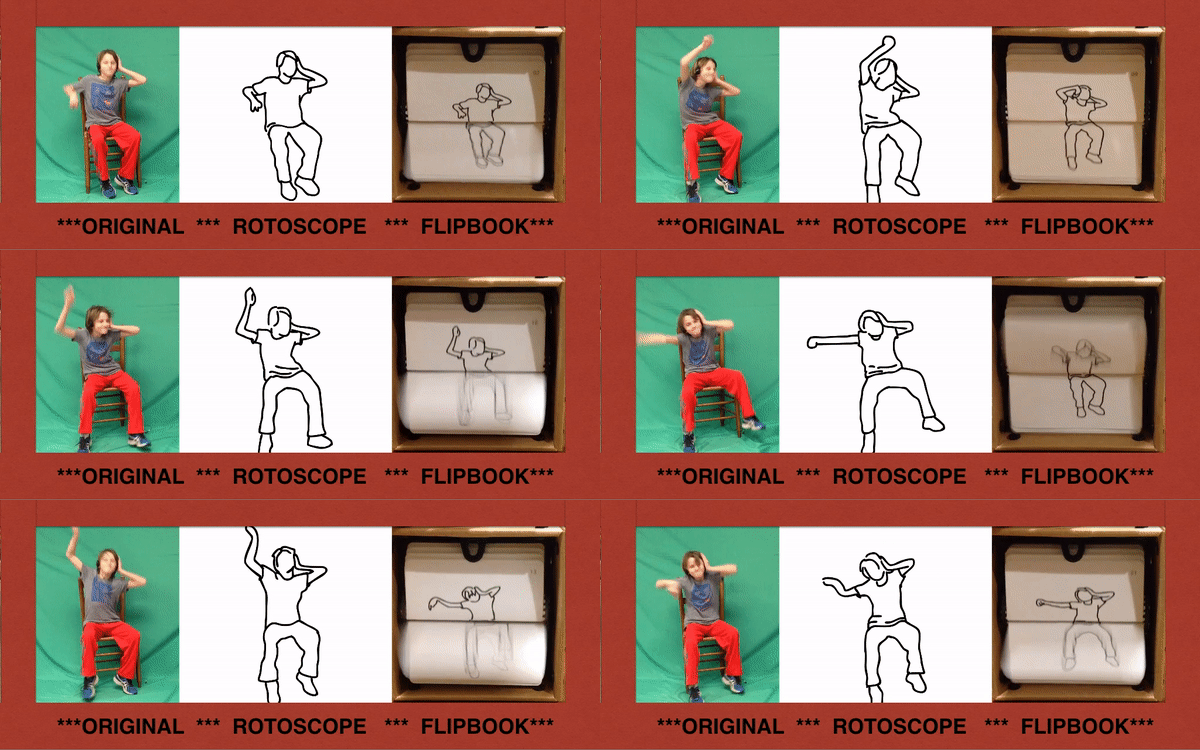
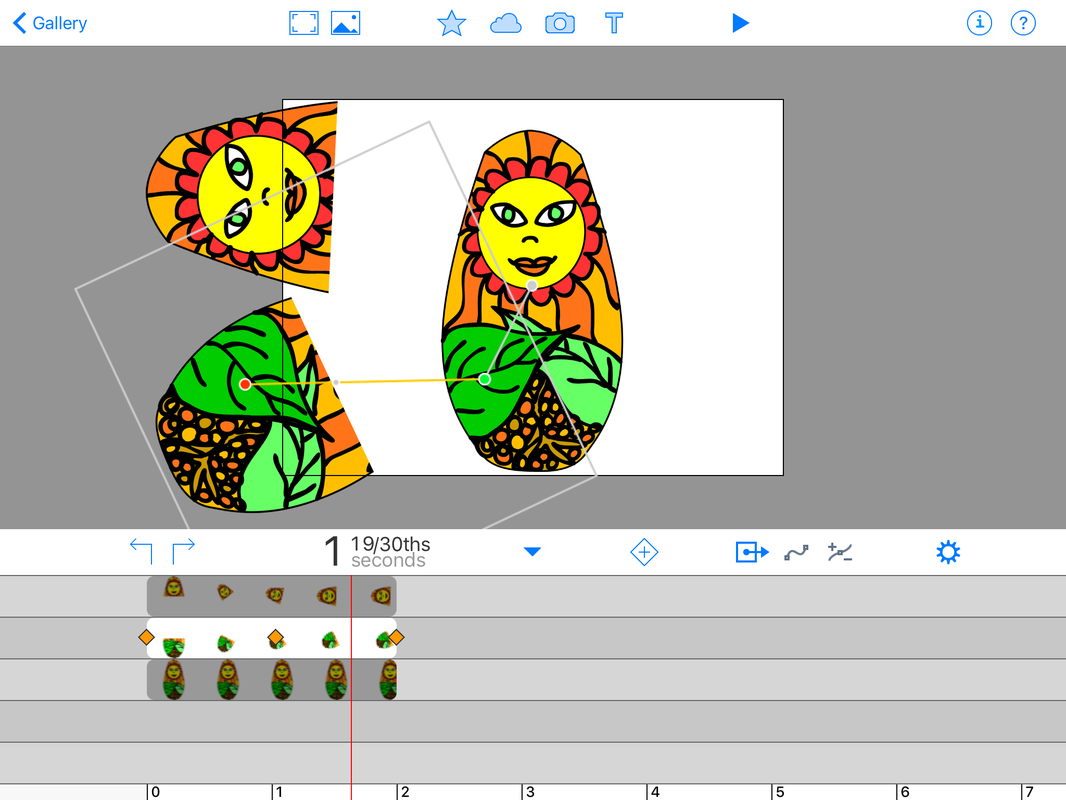
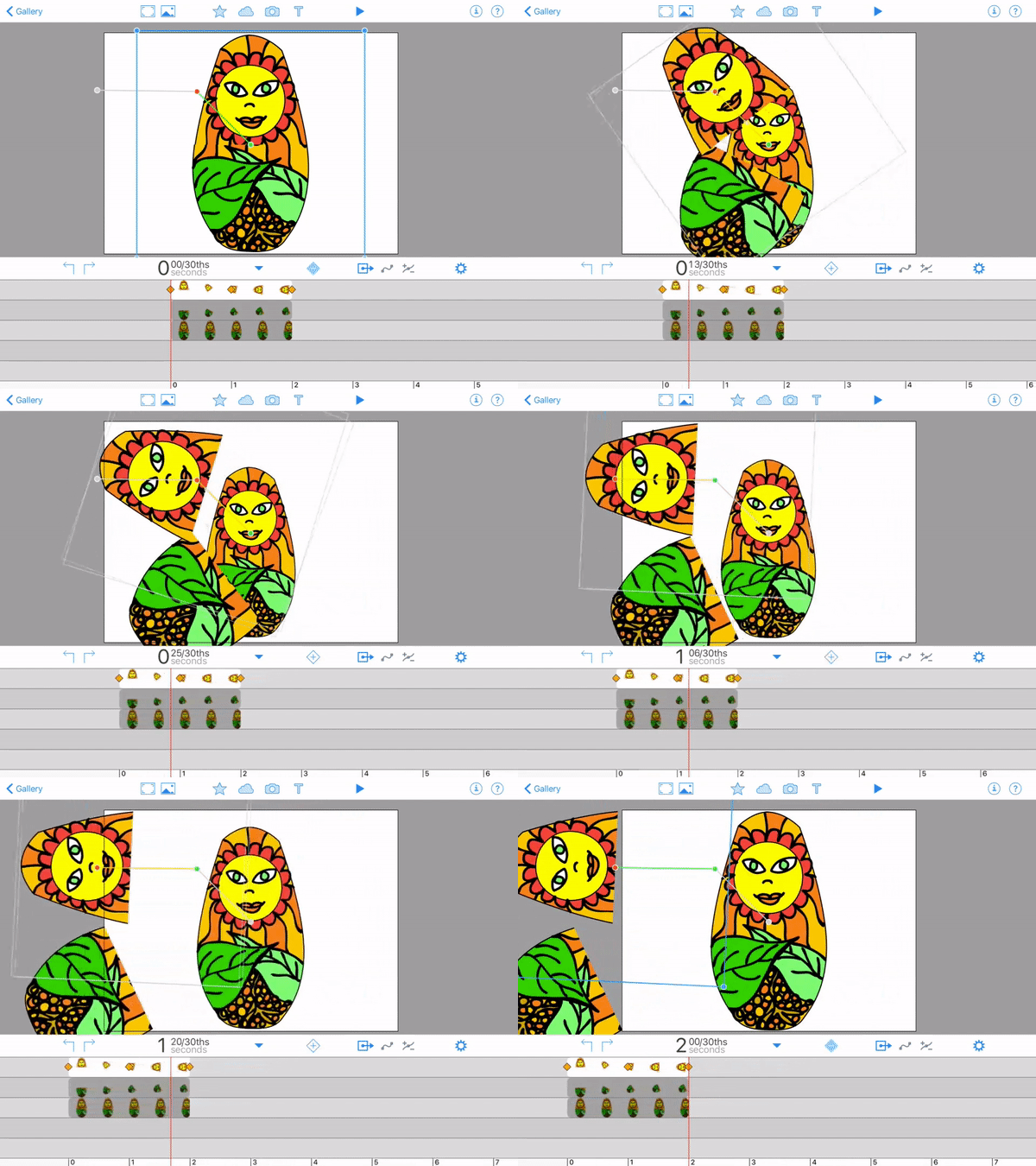
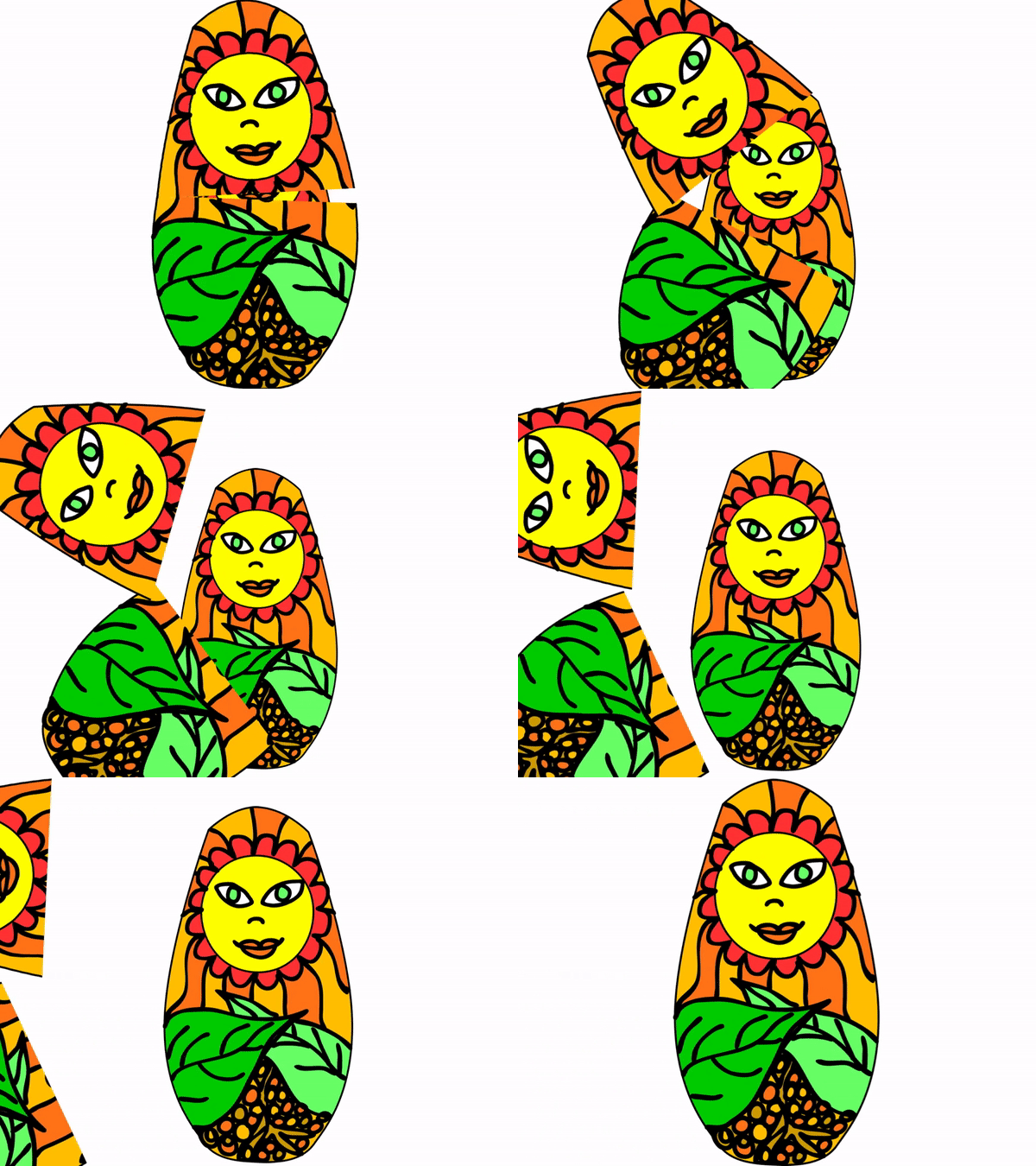
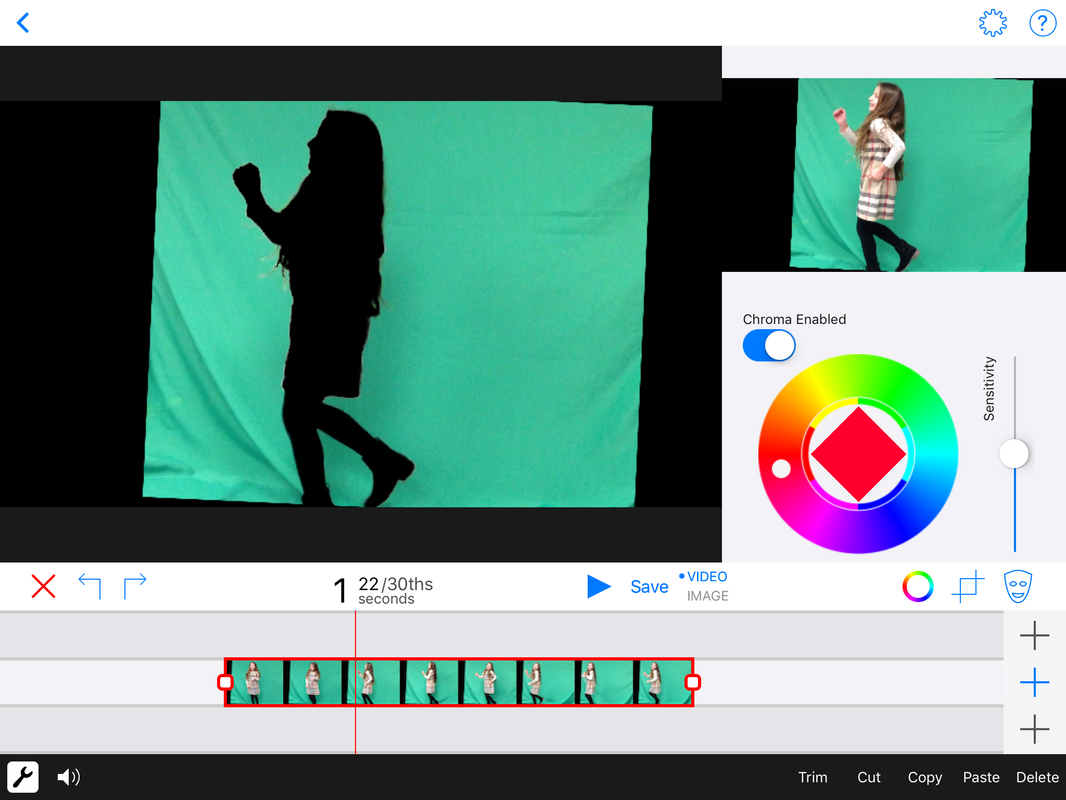
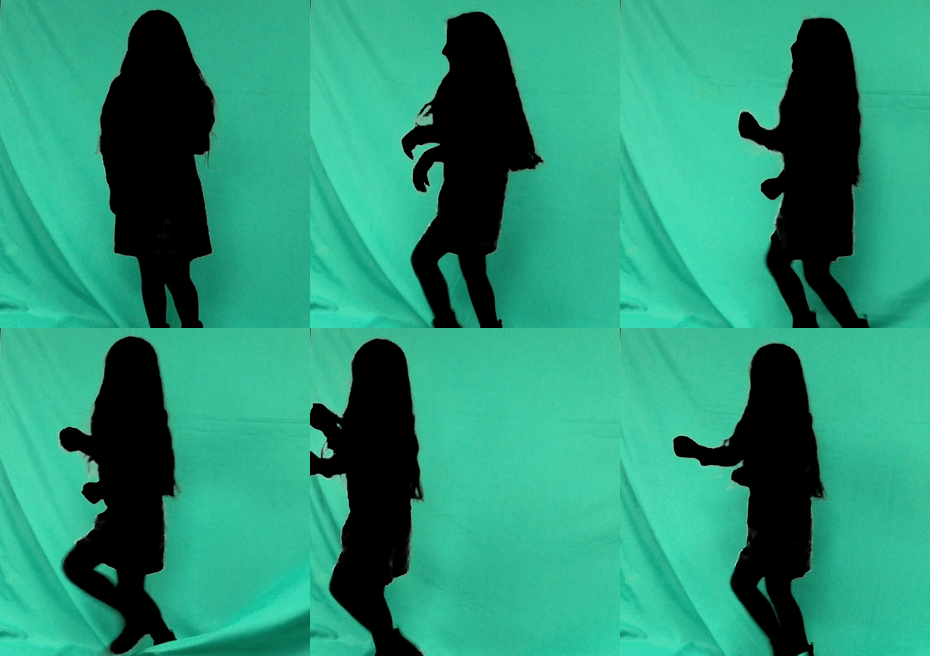
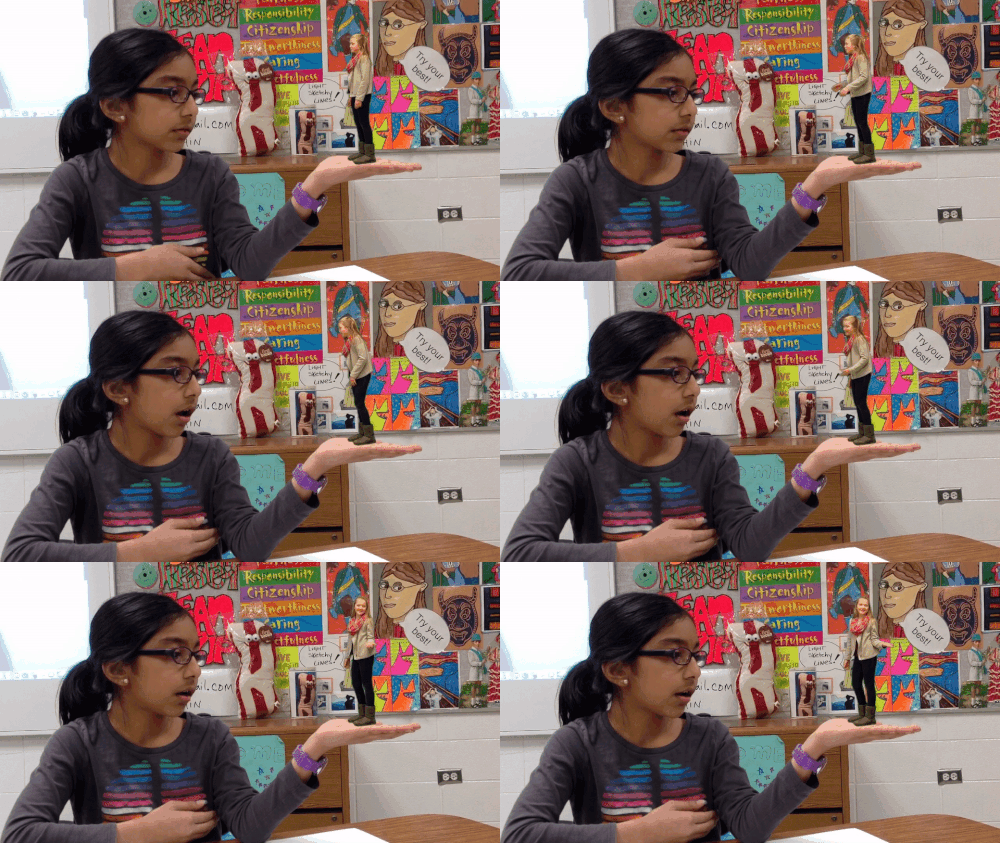
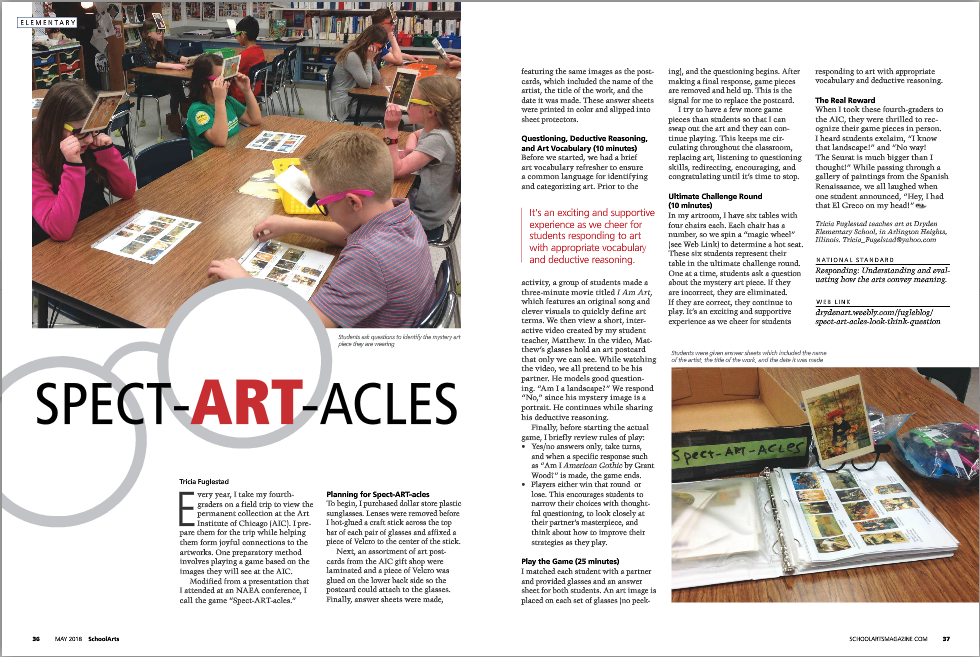
Last Spring Dryden's 5th graders created a collaborative rotoscoped animation on the iPads. It turned out to be so cool that we documented the process and entered it into the McGraw-Hill STEMie Award contest as a Technology and Art project.

Out of the 158 video projects submitted from across the country, they chose 30 finalists. Our Rotoscope Animation on iPads project is one of these finalists. 
The next step is a voting round. 30% of our score is determined by voting.
We have until noon on Sept. 19th to get as many people as possible to create a login and submit their vote for our movie. You can only vote once, so please spread the word!

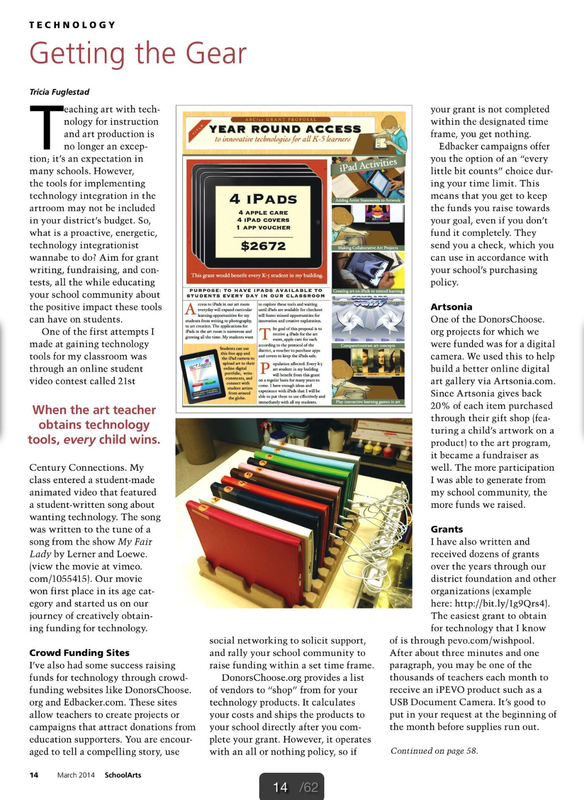
As part of the application process I filled out essays, sent out and collected permission slips, and proposed a plan for how we would use the $15,000 first place award if we won.  On this point I wrote that I would like to see the money go towards iPads. 
I know that Dryden has iPads, but the teachers do not. Adding new iPads to our collection means that as the iPads rotate through the grade levels each classroom would still have access to one iPad. The one iPad classroom is still a wonderful thing for engagement, quick research, collaboration, and planning. 
So, all the kids will win if we win this contest! Please vote and pass this on.
Picture
Click on the image to view the video and cast your vote
 
 
Picture
I created a page on my website dedicated to helping teachers get started with creating on iPads. It has links to resources, files, videos, tutorials, and art galleries to help you through the process. I added some handouts today with a bit more detail to help things along. Download the pdf here.

Picture
I recommend starting with this icebreaker activity to help you explore the painting tools, get a feel for the stylus, and trouble shoot Brushes app until it is doing what you want it to do.

Click on the image to enlarge.

Picture
This activity uses the Brushes app. This is a nice project to help create a collaborative piece of art while learning digital tools and refreshing your figure drawing skills. You will need my template to get started. 
Click on the image to enlarge.

Picture
You will need a couple of my files and the Brushes app again for this technique. I also have a video that will help you see what this looks like in the classroom.
This technique can be used for any sketching activity when students need to look closely.
Click on the image to enlarge.

Picture
This graphic design technique is so easy that you'll start to wonder if anyone would pull out the laptops and try to layer in photoshop with elementary students ever again.View the video of students working. Grab hatGrab a sample of healthy choices
Click on the image to enlarge.

Picture
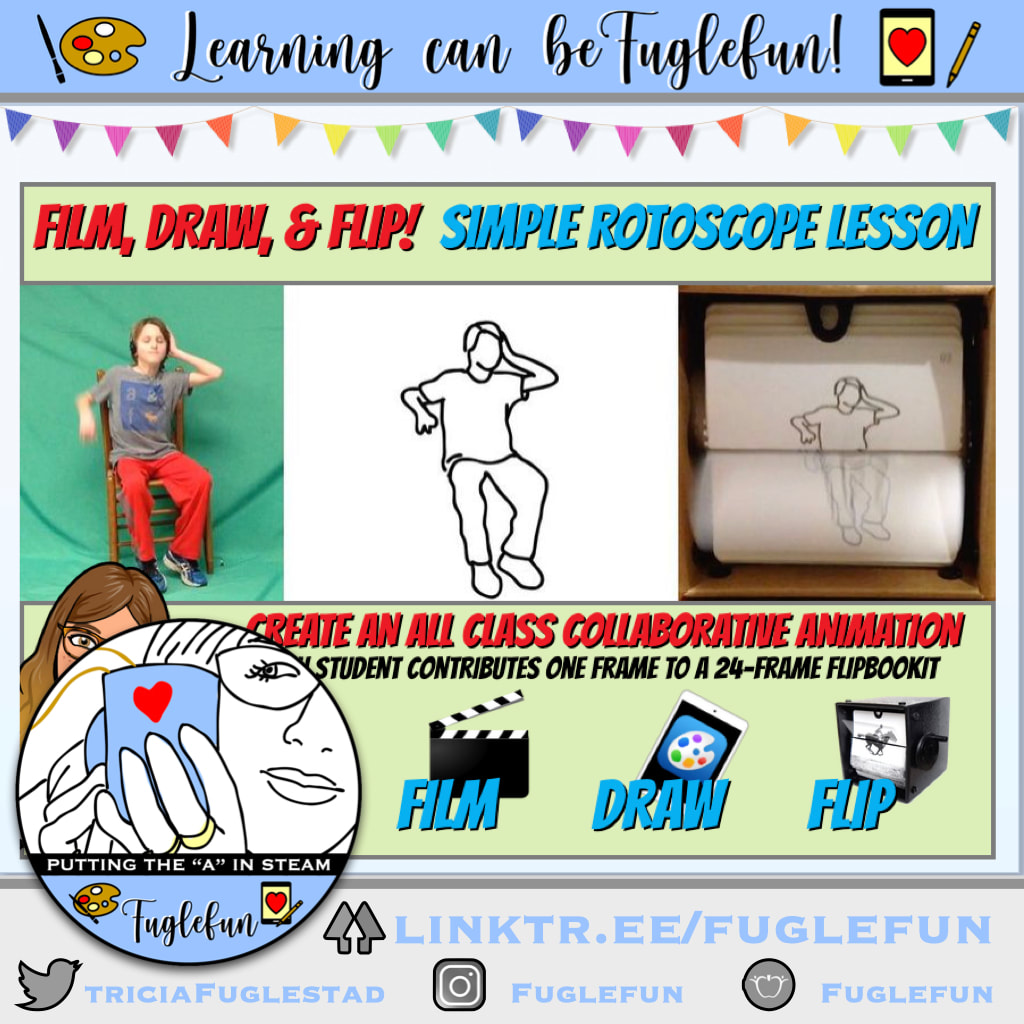
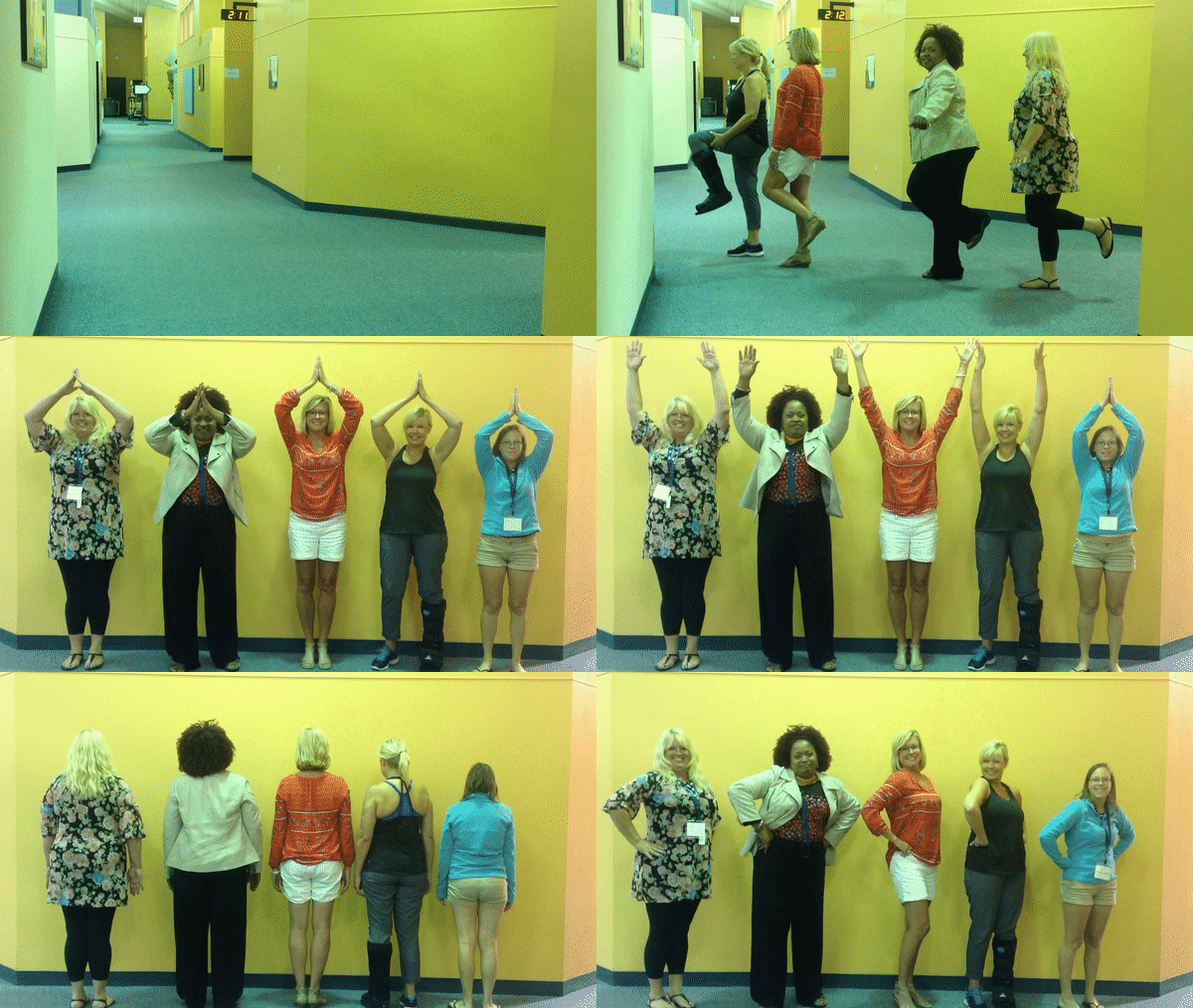
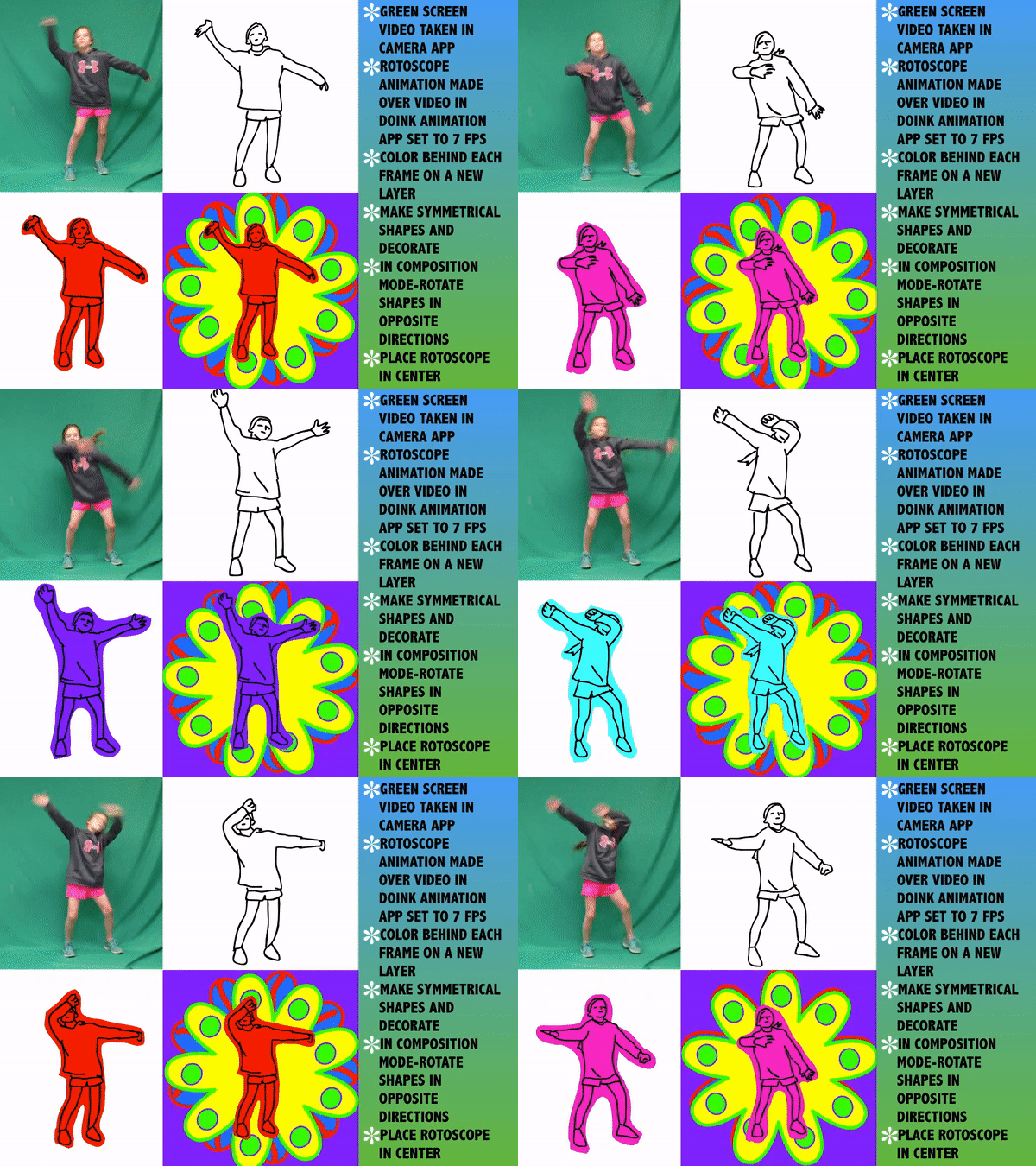
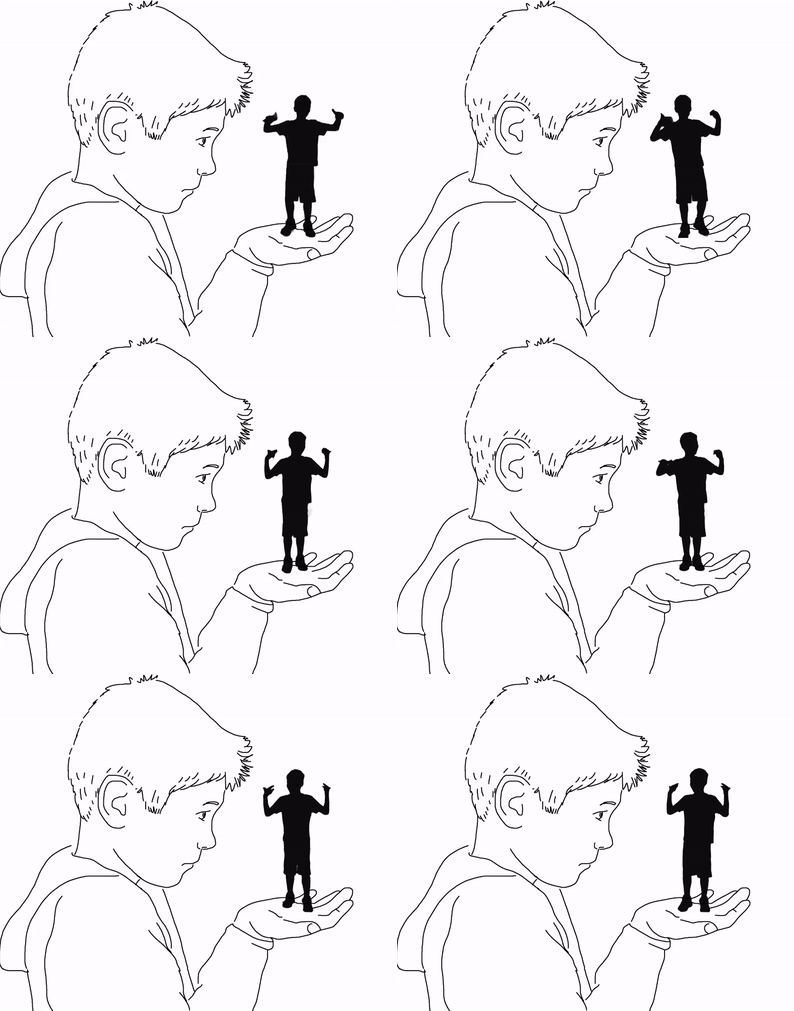
This project was a grand slam with my fifth graders. This  technique is spelled out in this post. I put together a sample set of images to practice with taken from a 4 second video with at 12 fps rate. So give it a try.

Click on the image to enlarge.

Picture
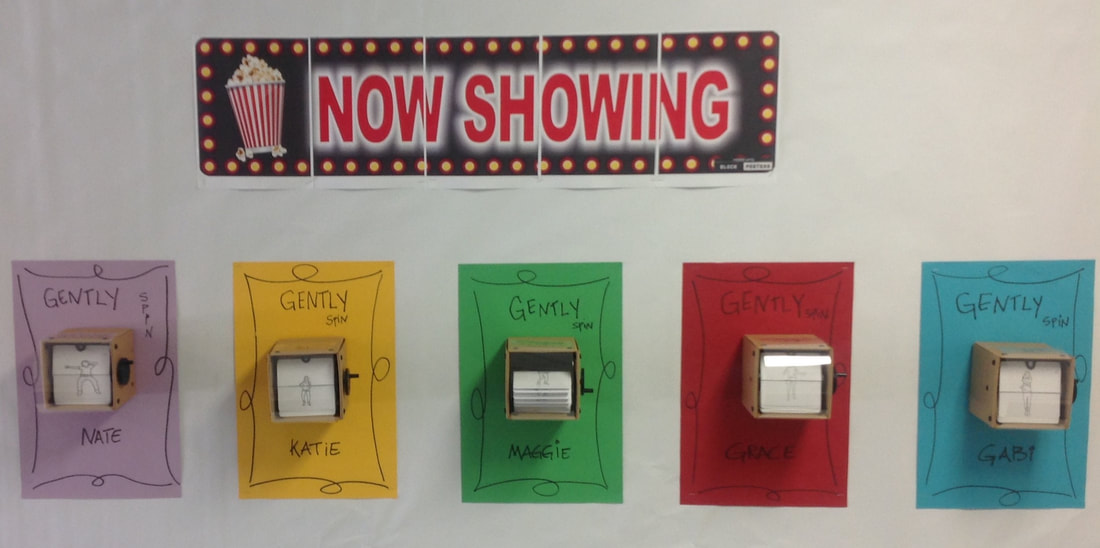
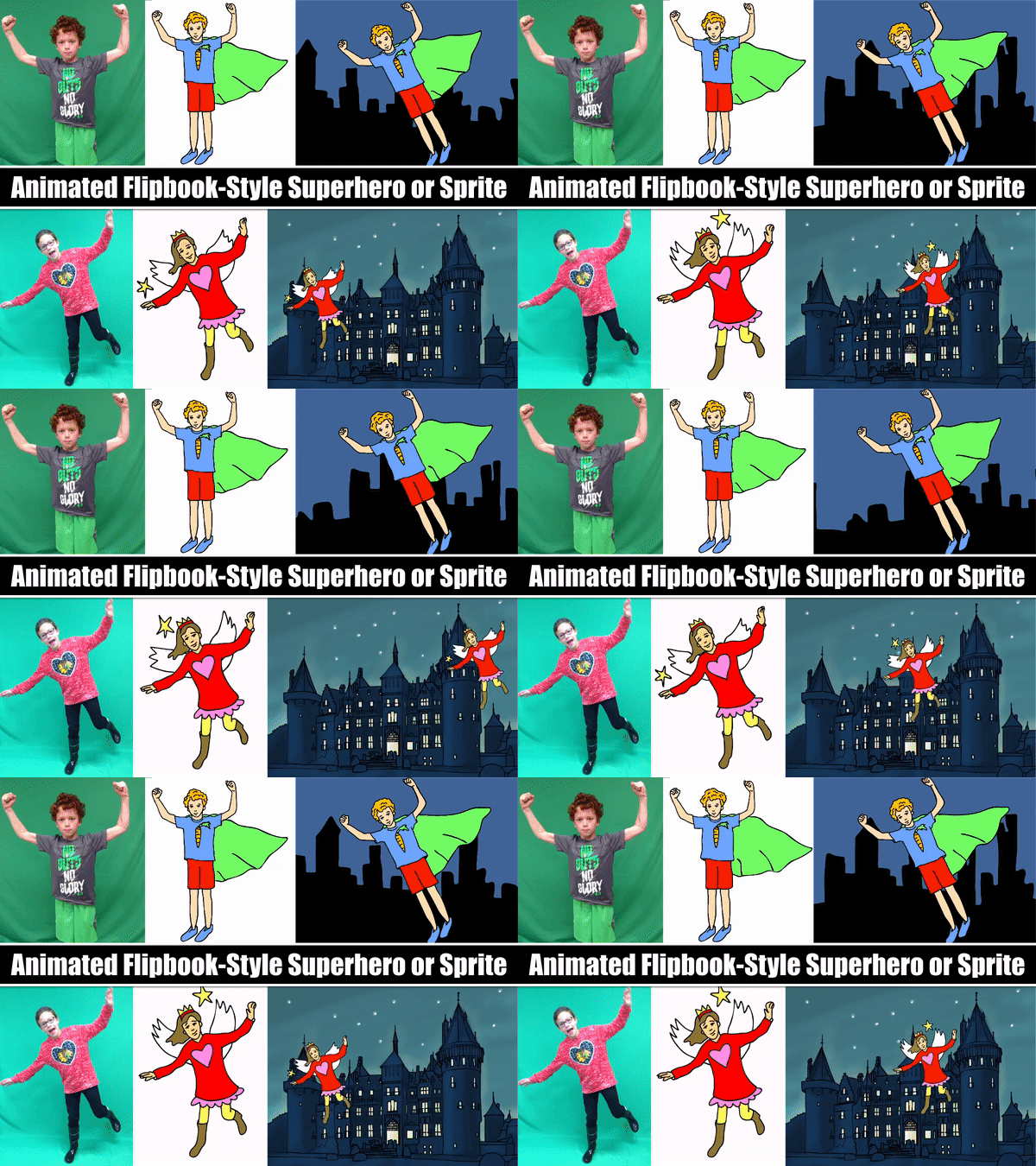
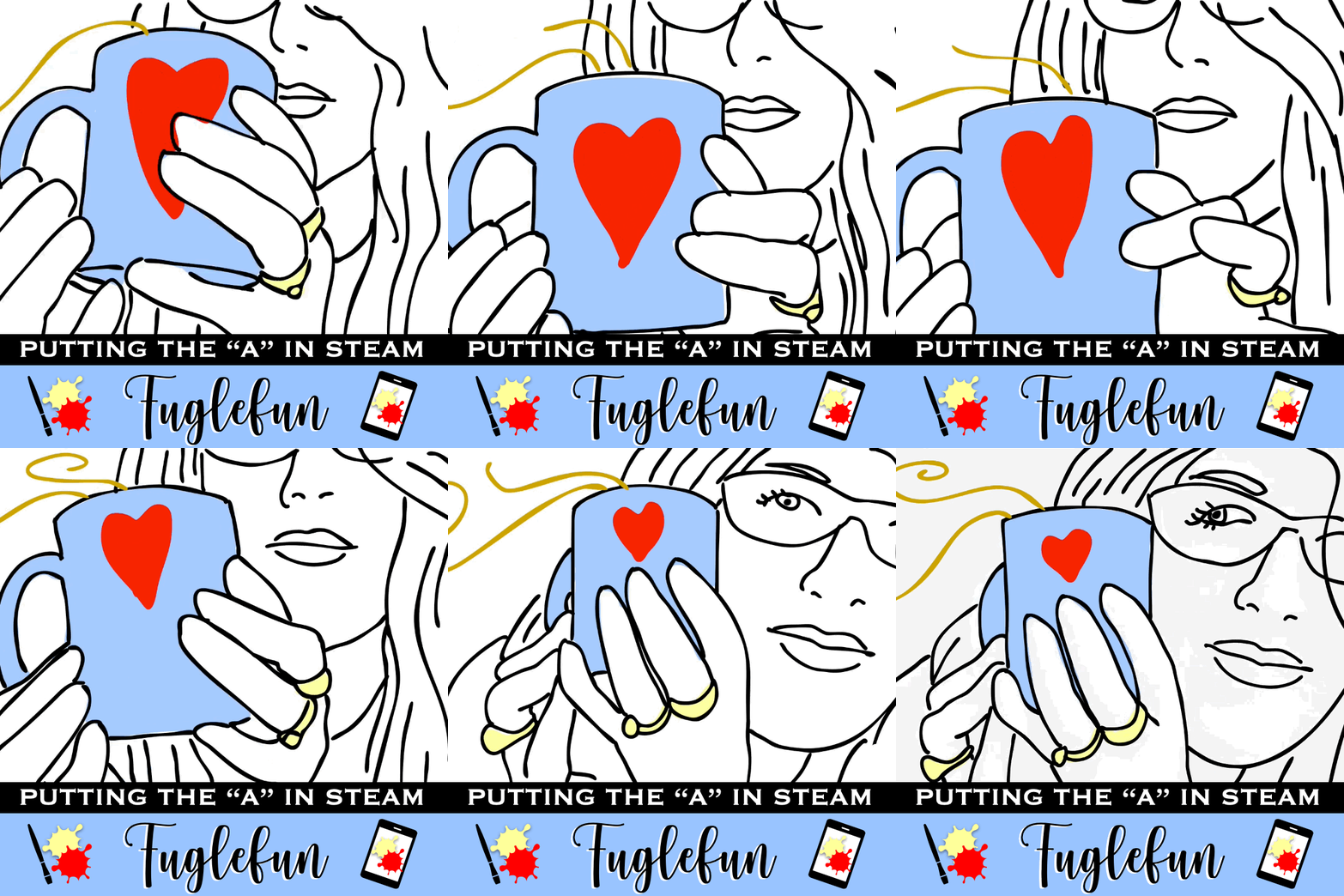
My third graders LOVED learning to create an animation using a flip book technique with onion skinning which sounds complicated, but trust me, you'll catch on really quick. View my tutorial. See my students at work

Click on the image to enlarge.

Have fun creating on iPads. Don't forget all these resources and more are on the Creating on iPads page.
 
 
I'm gearing up for the school year by collecting my resources and making them easily available for anyone who wants to learn some of my tips for how to create on the iPad. There are tons of apps in the app store, but I tried to limit my ideas to only a few so that we can work with what we have on our school iPads while I explore other apps and begin writing grants to get them in the future. (100 ipads=$$ for each app purchase) so I'm trying to keep it simple. Below is a screen shot of the new page I added to my website. Visit it here. There are links leading to resources, videos, tutorials, and files that you can download from your iPad and get started playing right away. 
 
 
Picture
Graphic Organizers
Compare-a-Twist allows the teacher to set up a compare and/or contrast review game on any topic. Students drag the text or image to the correct side of the screen. Animations give immediate feedback to learners. Teachers can save their games and share them via google docs. Ideas: Sort primary/secondary colors Sort warm/cool colors. Sort images by genre.

Picture
Collaborative Art
Make a Monster App
Create a Monster App
Faces iMake
Art Doodles
Ideas: as students are individually sketching ideas for an upcoming art design, pass the ipad around the room and have each contribute to a class design. Watch it build on the screen through the projector.

Picture
Art Puzzles
Art Puzzles: Sliding Slices
Find an art puzzle that relates to the art subject or artist that your art project is based on. Let each student make one move until it's solved. Keep track of how many moves it takes to solve and see if they can beat other classes' scores.

Picture
Quizzes
You can make your own quizzes in Educreations or use a pre-made interactive quiz from the art section of BrainPop App.
Idea: pass the ipad from one group to the next giving them the first chance at getting the correct answer.

Picture
Interactive eBooks
Find an ebook that ties in nicely with what you're learning in art class. We made monsters from shapes . When finished I had student's take turns turning the page in There is a  Monster at the End of this Book
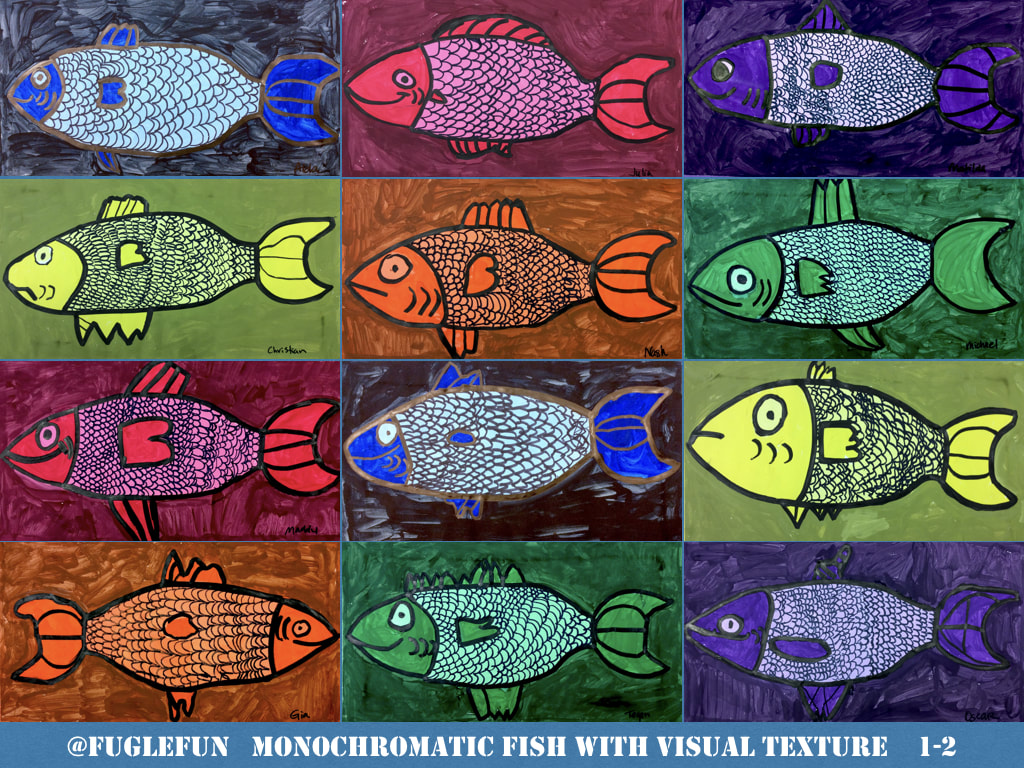
starring Groover. We used a Finding Nemo interactive puzzle book  to accompany our monochromatic fish lesson too.


Picture
Digital Portfolio

Don't forget that an ipad is a video camera and still camera too. 
Photograph and upload art with the 
Artsonia app
Use Evernote to collect images
Use Dropbox app to collect images

Picture
Let your ipad roam!
Mirror your ipad through your projector wirelessly with
Apple TV
Reflection App
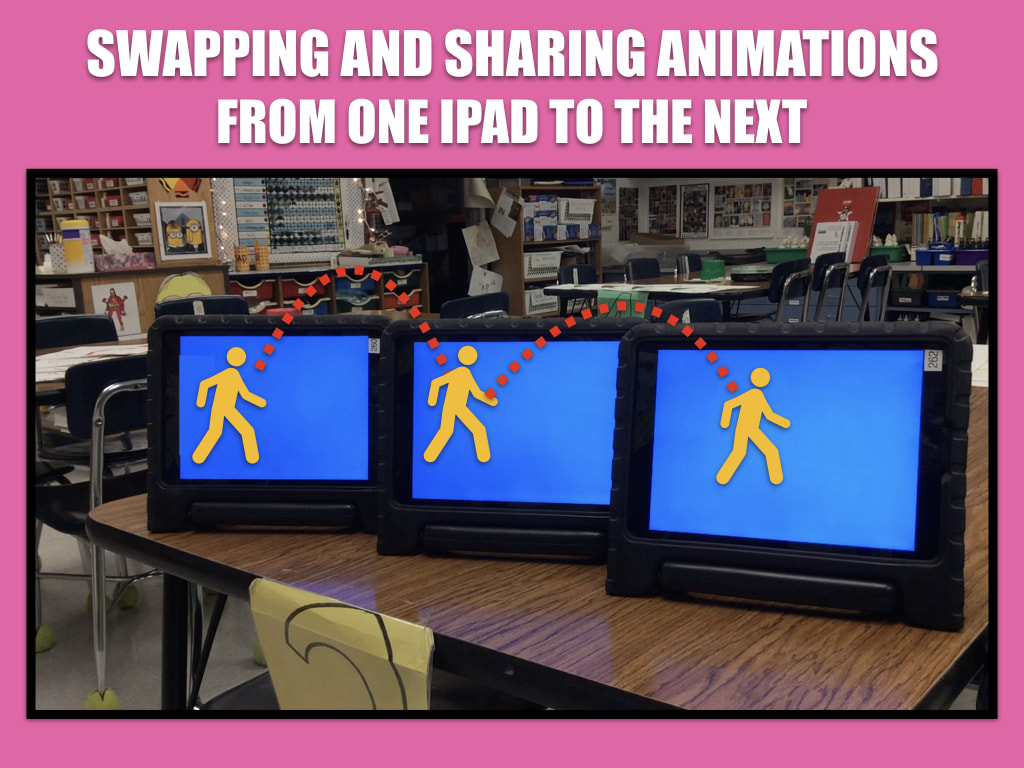
Then pass the ipad around the room.
No wifi? You can create a closed network and still mirror your ipad with a laptop hooked up to a projector.


Picture
I have so much to say about this digital graphic design lesson based on the painting Christina's World created on the ipads that I wrote it up as an article for School Arts magazine. Hopefully I will be able to share every last detail with you if it is accepted for publication.

Picture
Meanwhile, I wanted to share some resources that I made to accompany the lesson so you can explore these ideas now while you might have time. How to use instant alpha on a mac to erase the background is  in the beginning of this video. How to use the magic wand tool from photoshop to do the same thing is in this video.

Picture
I erased Christina out of Andrew Wyeth's original piece, Christina's World. View the video below to learn how to do it in both Keynote and Photoshop Elements. The end of the video shows a student creating the artwork on the ipad using the Brushes App.
The key to making this project work with students is the Dropbox app for sharing and accessing images for the ipad.
View our online art gallery of completed student work for this project. Many students wrote a bit in their artist statements explaining the new story they intended to tell.


The more you know what an app can do, the more you see how you can use it with your students. So, I've been playing and exploring on the iPad all summer. 

Last night I decided to try to make an image to communicate our new weekly #ArtsEd Chat on Twitter (Join us!). To make this image I used the Brushes App to draw, ArtStudio App to add text, create an overlay effect, and import an image I borrowed from the PlayArt app. I thought it might be helpful to demonstrate how to do all these steps, so I practiced using another app called, Display Recorder (which is not in the Apple store right now for some mysterious reason) to make a screencast on the ipad. I uploaded it to youtube (see below).
 
 
Don't say "can't" without ever trying. So dance giraffe! This is your song!
This animation was drawn and animated in Doink app on the ipad.
The song was composed in Garageband on the ipad.
The movie was edited in imovie and uploaded here. I plan on using it as a hook for my art students to introduce our Giraffes Can Dance art project.
Picture
I bought a class set (6) of stuffed giraffes and the book 
Giraffes Can't Dance by Giles Andreae.

They were on sale at Kohl's for only $2.50 as part of the 
Kohl's Cares charity.

Click here to go shopping before 
they run out.

Picture
The plan:
1. Read the story or watch the video (below)
2. Practice drawing giraffes by placing one giraffe at each table and asking students to
 a) manipulate the giraffe into a dance pose
 b) photograph it with the ipad
 c) import the photo in the brushes app
 d) draw over the photo
 e) email the finished drawing to me 
 f) I print the drawings for them
3.  Students turn the prints into paintings

I've seen this book inspire lots of art projects on Artsonia.com, 
so I can't wait to give it a try with my students. 


Apps for Video FX

07/10/2012

 
Way back when I was first playing with iMovie to make videos for my students I had to go through a very complicated process to do special effects. Be Kind to Your Erasers was filmed as two layers: one for the the finger and one for the lips. I used a third-party plug-in to create a picture in picture FX and did my best to layer the lips on to the fingers. It was inaccurately placed at times if the finger moved too much and the coloring didn't blend well. But, the results worked for me. I was only trying to convince my students to be kind to their erasers.
I remember destroying a Barbie Doll for the hair, painting a finger themed school room background, and using a twist tie for glasses. I was having a blast, giggling and playing like a 10 year old while putting the story together. I think I spent only a day or two of my summer vacation working on this video, but learned enough about editing imovie, script writing, and organizing a video to start doing this with my students the following school year. This is my favorite way to learn technology; by playing.

Now that I've acquired an iPad, I'm finding that there are apps that can be used for awesome video FX that would make recreating this movie much easier.
Funny Movie Maker- layers video over images (the lips effect). example
Paper Camera- makes rotoscoped looking videos. example
Doink-makes animated movies a piece of cake (like Flash but easier interface). example
Brushes- makes video from every stroke and choice made in creating art. example
FaceJack- does what Blabberize does for making an image talk. example
Puppet Pals or Explain Everything-make animated videos w/audio example

What else can we add to this list? Please chime in!
Picture
By the way, Be Kind to Your Erasers has a Cafe Press store where you can get the gear. The products feature my favorite line from the movie, 
"Oh no! Not the hair!"

Trivia: Did you know this movie was made after I rented the video Thumbtanic
Trivia: Did you know that I was once recognized at the NAEA conference after I said the word "eraser".
Learn more about Fugleflicks from this 
Daily Edventures interview.


My students put together a video called,  "Push Up Your Sleeves" this year. This video was intended to be played before each of our new fugleflicks. But, when I saw how cute the final product turned out,  I thought the students needed to be recognized for their tiny video before I buried it in a video logo segment. So, Push Up Your Sleeves was entered into our district film festival and a local film festival where the students were commended for their creativity.

Yesterday I finally took the tie to work on the video logo. Here is how I made it:

The logo itself is designed in Comic Life iPad App (for the text) and Brushes App (for the image). Then I animated in Keynote (desktop version) and converted to quicktime. 

I composed the first segment of music on a web based garageband-like site called soundation.com. They let me download it as a .wav file.

Then I put all the video and audio together in imovie and uploaded it to vimeo.
 

UA-12621152-1